Creating your first extension
In this tutorial, we are going to walk through the process of creating a “Hello, World!” GDZig extension. By the end of the tutorial, you will have a basic GDExtension plugin built with GDZig that can print “Hello, World!” to the Godot console.
Prerequisites
Section titled “Prerequisites”To get started, you will need an existing Godot project. A brand new project will work fine. You will also need Godot 4.4 or later and Zig 0.16.0 installed and available on your PATH.
Scaffold the Zig package
Section titled “Scaffold the Zig package”From a terminal emulator in your Godot project’s root folder, we need to initialise our Zig project. This is the idiomatic way to start working with a new Zig project, and so we will do that here.
zig initOnce this has been run, you will see several new files have been created:
build.zigbuild.zig.zonsrc/main.zigsrc/root.zig
You may delete src/main.zig and src/root.zig as we will not need them in this tutorial.
rm src/main.zig src/root.zigThe next thing that we want to do is install GDZig as a dependency.
zig fetch --save=gdzig "git+https://github.com/gdzig/gdzig"You should see something like info: resolved to commit {hash}, indicating that the fetch completed successfully.
The build.zig.zon file will now contain a .gdzig entry under .dependencies. For example:
.dependencies = .{ .gdzig = .{ .url = "git+https://github.com/gdzig/gdzig#894c8e196fa928122115137ade879ed2c68220b6", .hash = "godot-0.0.0-dev-q0GYjhcYwQDEOPjSJpZjpTgwbzQzM7U5qnDrwsLnnz42", },},To keep things simple, we’re going to replace the content in build.zig with the following:
pub fn build(b: *Build) void {    // Options    const target = b.standardTargetOptions(.{});    const optimize = b.standardOptimizeOption(.{});    const godot_path = b.option([]const u8, "godot-path", "Path to a Godot executable");
    // Dependencies    const gdzig_dep = b.dependency("gdzig", .{        .target = target,        .optimize = optimize,        .@"godot-path" = godot_path,    });
    // Extension module    const mod = b.createModule(.{        .root_source_file = b.path("src/hello_world.zig"),        .target = target,        .optimize = optimize,        .imports = &.{            .{ .name = "godot", .module = gdzig_dep.module("gdzig") },        },    });
    // Extension library    const extension = gdzig.addExtension(b, .{        .name = "hello_world",        .root_module = mod,        .entry_symbol = "hello_world_init",        .target = target,        .optimize = optimize,    }) orelse return;
    // Install    const install = b.addInstallFileWithDir(extension.output, .{ .custom = "../lib" }, extension.filename);    b.default_step.dependOn(&install.step);
    // Run    const run: *Step.Run = .create(b, "open Godot editor");    run.addFileArg(gdzig_dep.namedLazyPath("godot"));    run.addArg("--editor");    run.addArg("--path");    run.addDirectoryArg(b.path("."));    run.step.dependOn(&install.step);
    b.step("run", "Open the project in Godot").dependOn(&run.step);}
const std = @import("std");const Build = std.Build;const Step = std.Build.Step;
const gdzig = @import("gdzig");
This configures our Zig build to load GDZig, and to build and install our extension library where Godot can load it. There is also a run step that will open the project in Godot when we run zig build run.
If you try to run zig build at this point, it will fail, since we have not created our extension source files yet.
Write the extension
Section titled “Write the extension”Now we need to create two files:
src/hello_world.zigsrc/HelloWorld.zig
hello_world.zig
Section titled “hello_world.zig”hello_world.zig will be where we register our extension with Godot. In this file you add classes to the registry that Godot will be able to load in the editor and at runtime. Copy the code below into src/hello_world.zig.
pub fn register(r: *Registry) void {    r.addClass(HelloWorld, r.allocator, .{ .is_runtime = true });}
pub fn unregister(r: *Registry) void {    r.removeClass(HelloWorld);}
const std = @import("std");const godot = @import("godot");const Registry = godot.extension.Registry;
const HelloWorld = @import("HelloWorld.zig");
HelloWorld.zig
Section titled “HelloWorld.zig”HelloWorld.zig will be the custom Node that we will be able to add to a scene.
Copy the code below into src/HelloWorld.zig.
const HelloWorld = @This();
base: *Node,
pub fn create(allocator: *Allocator) !*HelloWorld {    const self = try allocator.create(HelloWorld);    self.* = .{ .base = Node.init() };    self.base.setInstance(HelloWorld, self);    return self;}
pub fn recreate(allocator: *Allocator, obj: *Object) *HelloWorld {    const self = allocator.create(HelloWorld) catch @panic("OOM");    self.* = .{ .base = @ptrCast(obj) };    self.base.setInstance(HelloWorld, self);    return self;}
pub fn destroy(self: *HelloWorld, allocator: *Allocator) void {    self.base.destroy();    allocator.destroy(self);}
pub fn _ready(_: *HelloWorld) void {    const message: StringName = .fromComptimeLatin1("Hello, World!");    general.print(.wrap(StringName, &message), .{});}
const std = @import("std");const Allocator = std.mem.Allocator;
const godot = @import("godot");const general = godot.general;
const Node = godot.class.Node;const Object = godot.class.Object;const StringName = godot.builtin.StringName;
Now you should be able to build your GDExtension:
zig buildDepending on your platform, you will see a hello_world library file in the lib/ folder, for example on a Mac you will see libhello_world.dylib:
lib└── libhello_world.dylibThe .gdextension file
Section titled “The .gdextension file”To tell Godot to look for our extension, we need to create a .gdextension file in the project root.
Copy the following code into a new file called hello_world.gdextension:
[configuration]
entry_symbol = "hello_world_init"compatibility_minimum = "4.4.0"reloadable = true
[libraries]
macos.debug = "lib/libhello_world.dylib"macos.release = "lib/libhello_world.dylib"linux.debug.x86_64 = "lib/libhello_world.so"linux.release.x86_64 = "lib/libhello_world.so"windows.debug.x86_64 = "lib/hello_world.dll"windows.release.x86_64 = "lib/hello_world.dll"
See it in the editor
Section titled “See it in the editor”We’re now ready to view our work in the Godot editor. You can either run the Zig run step we created earlier, or you can open the project yourself, whichever you prefer.
zig build runOnce you are in the Godot editor, create a new scene if you haven’t already. Add a new node to the scene and select the HelloWorld node that should appear in the list. You may need to search for it.
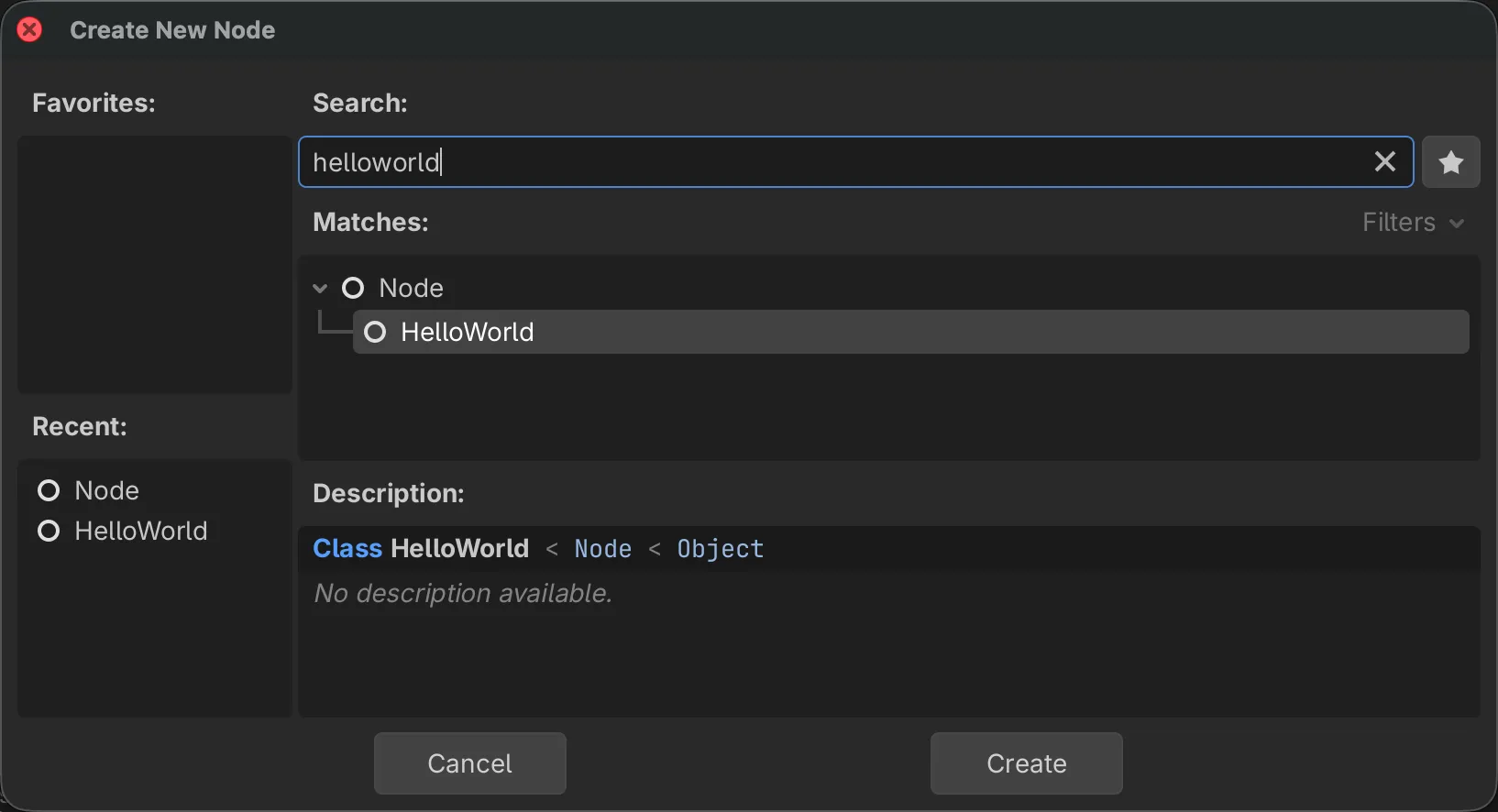
Now if you run the scene, you should see the text “Hello, World!” displayed in the editor’s Output panel.

Make it repeatable: zig build test
Section titled “Make it repeatable: zig build test”Let’s add a simple test to our extension. This demonstrates GDZig’s ability to run integration tests against an instance of Godot.
Update your build.zig file, adding this to the end of the build() method.
// Tests const tests = gdzig.addTest(b, .{ .root_module = mod, .target = target, .optimize = optimize, }); b.step("test", "Run tests in Godot").dependOn(&tests.step);Then add this block to the end of src/hello_world.zig above the import statements.
test "godot version is 4.x" { try std.testing.expectEqual(4, godot.version.major);}Obviously, this is a very trivial test. However, it shows that we’re able to read Godot’s version from the engine directly. The power that this gives us as extension developers cannot be overstated! Run the tests using the following command:
zig build test
# for a more verbose outputzig build test --summary all
If all is well and good, the tests should pass, and you have created your first GDZig extension!